Results
The rows of a query, in an editor or a table page, are shown three ways, by the tabs at the left of the grid:
- Grid
A table of the rows, to read, sort, copy and edit.
- Text
The rows as aligned text, to copy out. Alt+drag selects a block.
- Record
One row at a time, a line per column, for wide tables. The arrows step from row to row.
NULL is shown as NULL and a blob as BLOB with its size, each in a
background of its own, so neither can be taken for text that reads the
same; the preferences can change both. Numbers line up on the right.
Resting the pointer on a column’s header says where the column comes from —
main.Customer.id — so two columns of the same name from different tables
can be told apart, and what its declared type is.
Clicking a header sorts by that column: numbers, then text in its natural
order (B2 before b10), then blobs, and NULL last. A sort works on the
rows read; for all of them, ORDER BY is the way. Rows that can be edited
are not sorted by the header: there, the Order box of a table page or
ORDER BY does it.
F5 runs the query again.
Copying and exporting
Ctrl+C copies the selected cells as tab-separated text, the way spreadsheets paste it; a value with a tab, a line break or a quote in it is quoted.
Export above the grid saves the rows, or copies them, in another format:
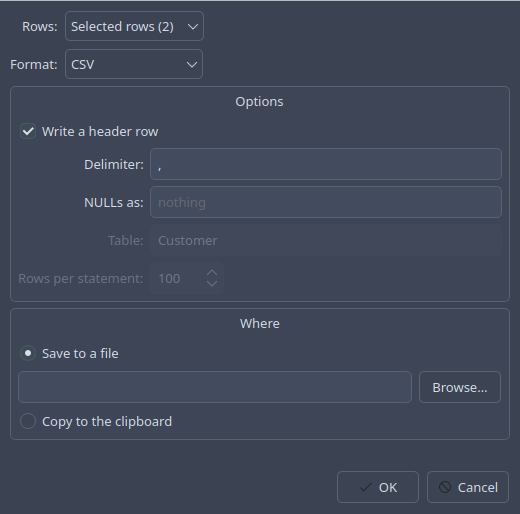
Format |
Notes |
|---|---|
CSV, tab-separated |
the delimiter, a header row, and how to write |
Text table |
aligned columns, as the Text tab shows them |
SQL |
one statement per row, or many rows per statement, into a table of your naming; blobs as |
JSON, JSON Lines |
an array of objects, or one object a line |
Markdown, HTML, XML |
a table |
Excel XML |
a workbook Excel and LibreOffice open as a spreadsheet |
Python list |
a list of tuples, to paste into code |
The rows to export are the ones fetched, the ones selected, or all of them — which, for a query stopped at the row limit, runs it again and writes every row, without keeping them in memory. Copy as in the same menu skips the dialog.
Editing
The rows of a query can be changed when SQLite can tell where they came
from: every column from one table, and that table’s key among them — its
rowid, or its primary key for a table WITHOUT ROWID. A
table page always can. The line under the grid says which:
Editing main.Customer, or Read-only.
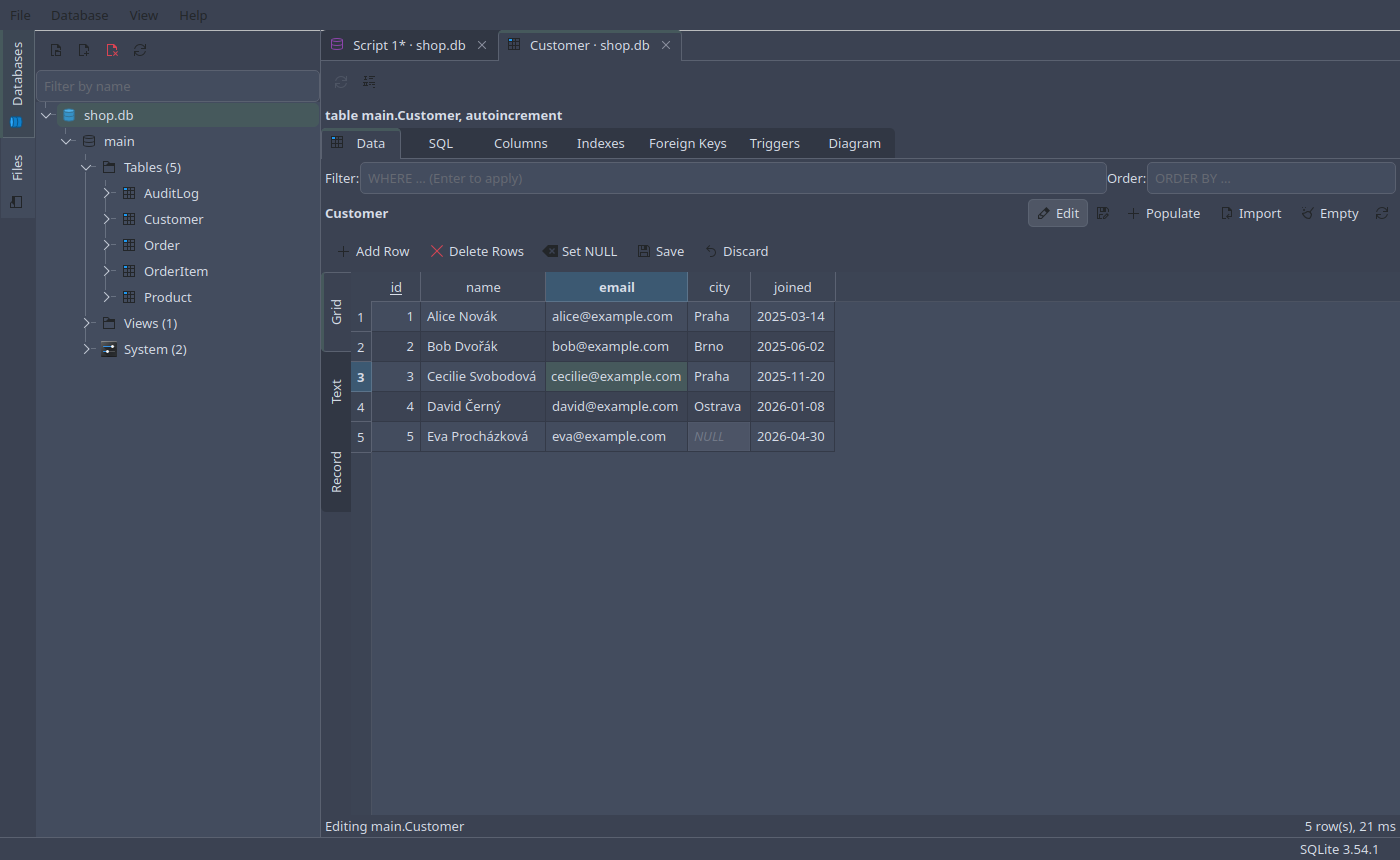
Edit above the grid shows the editing tools:
- Add Row (Ctrl+Insert)
A new row at the end, its columns at their defaults until set.
- Delete Rows (Del)
Marks the selected rows to be deleted; again to take that back.
- Set NULL (Ctrl+Shift+N)
NULLinto the selected cells.- Save (Ctrl+S while in the grid)
Shows the
UPDATE,INSERTandDELETEstatements the changes make, and runs them.- Discard
Forgets the changes.
Double-click a cell, or start typing, to change it. What is typed is stored
as the column’s type asks: 42 into an INTEGER column is the number 42,
into a TEXT column the text 42 — as SQLite’s type affinity would make
it. Changed cells are marked until they are saved.
Saving runs all the statements in one savepoint, and each must change exactly one row: if one changes none — the row was changed or deleted meanwhile — or fails, none of them are kept. The query then runs again, so the grid shows what the database holds.
Values
Shift+Enter, or View Value… (Edit Value…) on a cell’s context menu, opens the value in a window of its own:
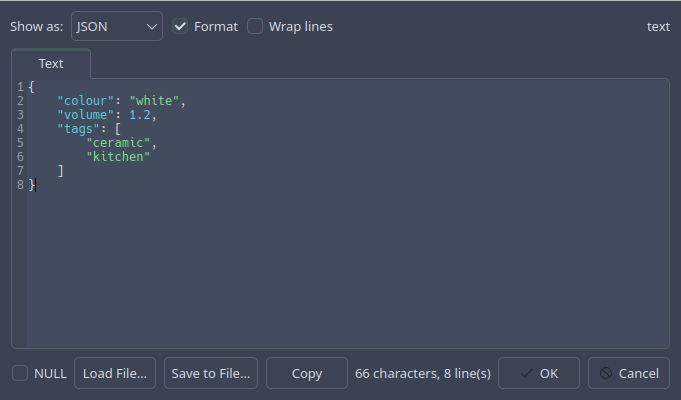
- Text
The value as text. Show as JSON highlights it, and Format indents it a member a line.
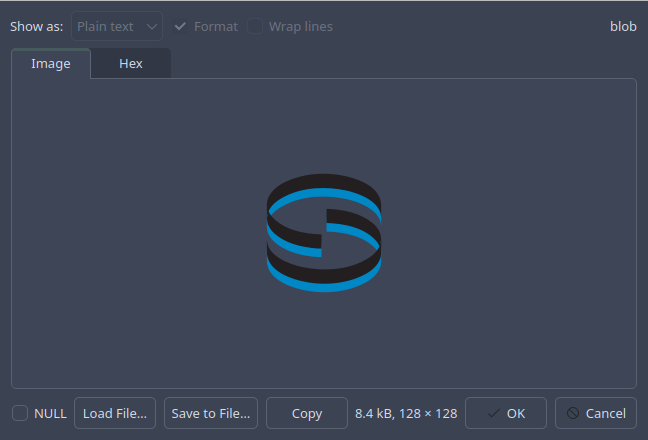
- Image
A blob that is a picture — PNG, JPEG, GIF or another format Qt reads — is shown as one.
- Hex
The bytes, sixteen a line, with their text beside them.
NULL sets the value to NULL; Load File… takes a file as the value, as
a blob; Save to File… writes the value out as it is. A blob is edited
here rather than in the grid. OK puts the value into the cell, to be
saved with the rest.
The query plan
Ctrl+E in an editor shows how SQLite would run a statement, as a tree of steps in the Plan tab:
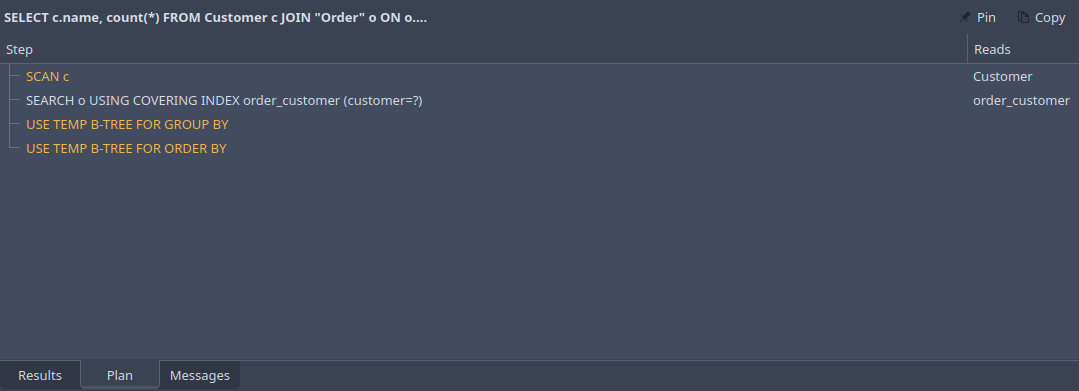
A SCAN reads every row of a table, a USE TEMP B-TREE sorts or collects
rows in a temporary table; both are marked, as the steps worth a look on a
big table. Reads says which table or index each step reads. Copy copies
the plan as the sqlite3 shell prints it, and Pin keeps it in a tab of
its own.