Getting started
Starting
sqliteman [files...]
Each file named on the command line opens: an SQLite database in the
database browser, anything else — a script — in an SQL editor. Sqliteman
tells them apart by what is in the file, not by its name, so a database
called data.bin opens as a database. :memory: opens a database that
lives only in memory, as in the sqlite3 shell; it is gone when it is
closed.
sqliteman --help lists the options, sqliteman --version says which
version this is.
The main window
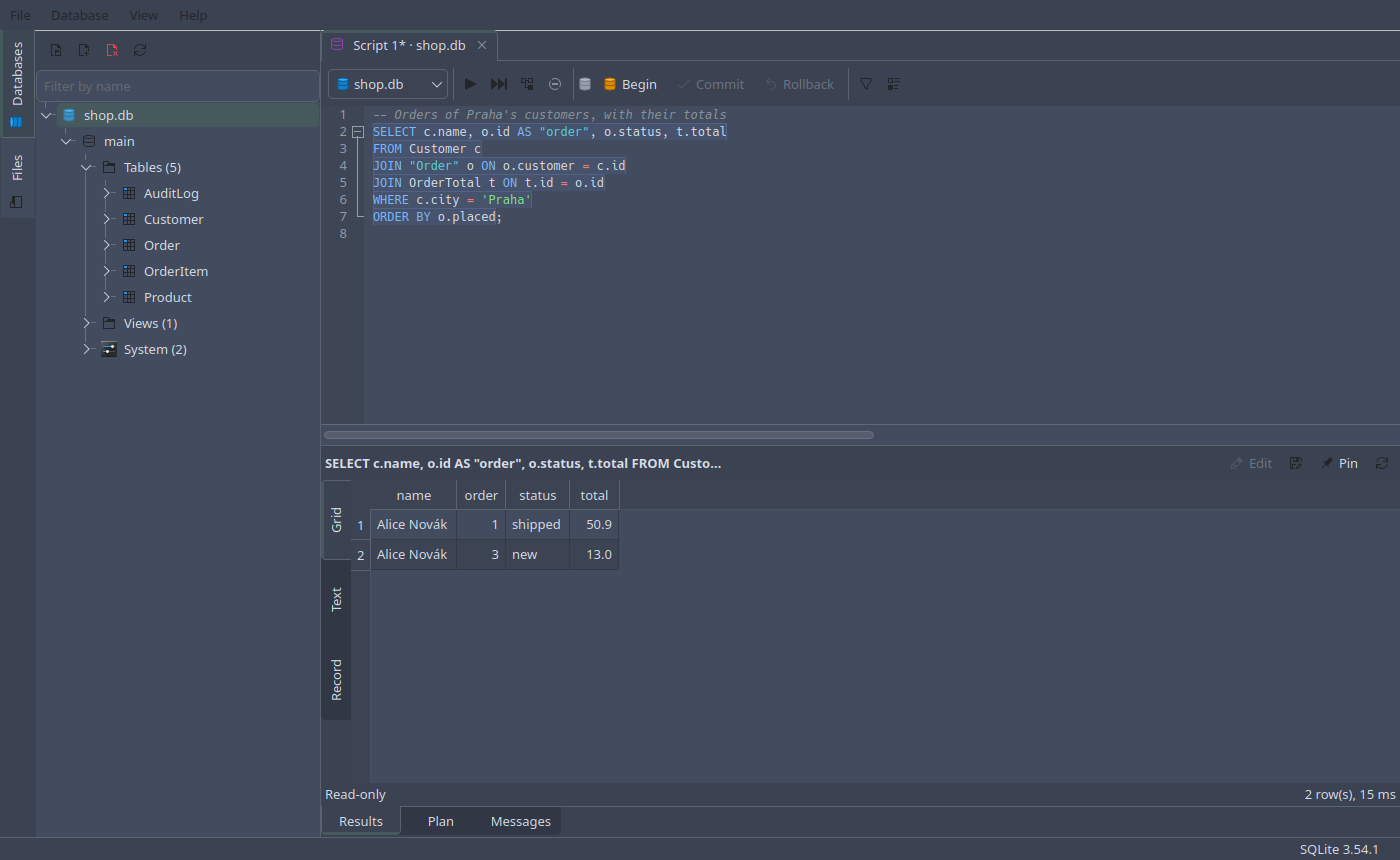
On the left are two tabs: Databases, the open databases and what is in them, and Files, a file browser for scripts. The rest of the window holds pages, one tab each: SQL editors, the rows of a table, an object’s details, the pragmas of a database. A tab dragged out of the window, or Move to New Window from its context menu, becomes a window of its own, and can be dragged back.
The status bar shows messages and, at its right, the version of SQLite the program uses.
A first session
Ctrl+O and choose a database — or New Database… in the Databases tab to make one. It appears in the browser with its tables, views and the rest.
Double-click a table: its page opens at its rows, ready to be filtered, sorted and edited, with its columns, keys and diagram on the tabs beside them. See table data and object pages.
Ctrl+N opens an SQL editor on the selected database. Type a statement and press Ctrl+Enter; the rows come in below. See the SQL editor.
Right-click anything in the browser for what can be done to it: Alter Table…, Create Index…, Populate…, Dump Database…. See the database browser.
F1 opens this manual at the page that describes what the window is showing.
Coming back
File → Open Recent lists the databases opened lately. Sqliteman can also open again the ones that were open when it was last closed — see configuration.