The SQL editor
Ctrl+N opens an editor on the database selected in the browser; the box at the left of its toolbar says which database it runs statements on, and can switch it to another. An editor without a database still edits and saves scripts.
The editor is QScintilla, with highlighting made for SQLite: keywords,
strings, X'…' blobs, the four ways of quoting a name, parameters
(?, ?1, :name, @name, $name) and the sqlite3 shell’s dot
commands each look like what they are. Statements, and the bodies of
triggers, fold.
Running
- Ctrl+Enter
Runs the statement under the cursor, or everything selected.
- Ctrl+Shift+Enter
Runs the whole script, one statement after another.
- Ctrl+E
Shows how SQLite would run the statement — its
EXPLAIN QUERY PLAN— in the Plan tab, without running it. See results.- Ctrl+.
Stops what is running.
- Begin, Commit and Rollback
Open a transaction, and end it. Only what fits is enabled: Begin outside a transaction, the other two inside one. The transaction is the database’s, shared by every page on it; see transactions.
A script stops at the first statement that fails, and the error is marked in the script: underlined where SQLite says it is — or, when SQLite gives no position, at the name its message is about — with the message in Messages and on the mark’s tooltip.
Statements are split the way SQLite itself splits them, so semicolons
inside strings, comments and trigger bodies are no trouble. Lines starting
with a dot — .headers on, .mode csv — are commands of the sqlite3
shell, not SQL; a script that has them still runs, and Messages says
which were skipped.
A query stops reading after 100,000 rows (the preferences can change that); the grid then says it shows only the first ones. An export can still have all of them.
Each statement’s rows go to Results, how it went to Messages: how many rows were read or changed, or the error. Pin keeps a result in a tab of its own, so the next statement’s rows do not replace it.
Completion
Completion offers what makes sense where the cursor is: tables and views
after FROM and JOIN, columns of the tables in the statement, with their
alias or without, the databases — main, temp, the attached ones — and
what is in each after name., functions, keywords, and pragmas after
PRAGMA.
It opens by itself after three letters or after a dot, or on
Ctrl+Space; Enter or Tab takes the choice,
Esc closes the list.
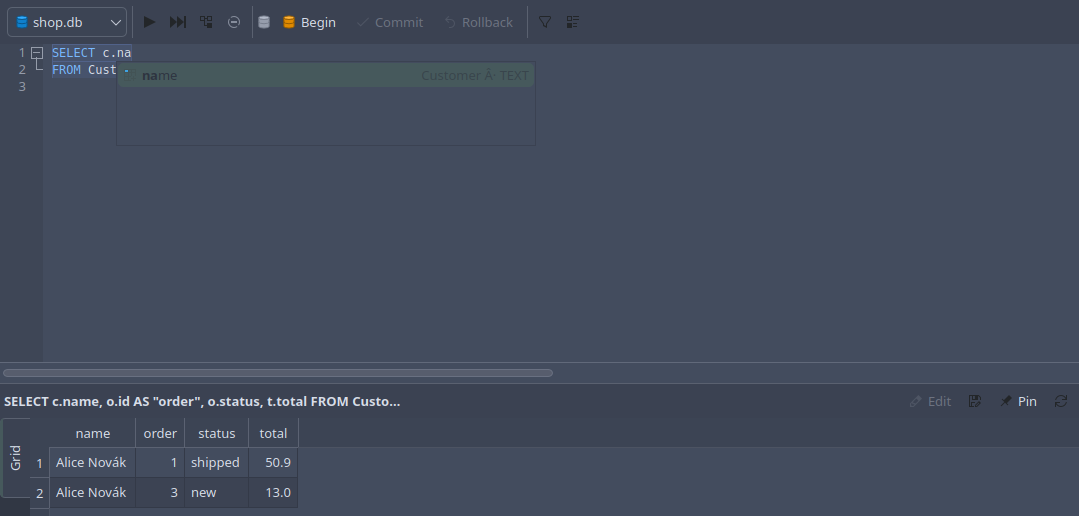
After c. the list offers the columns of the table c stands for, each with its type.
Matching is not only by prefix: ordit finds OrderItem, cnm finds
customer_name, and the letters that matched are highlighted, so it is
clear why something is offered. A name that needs quoting goes in quoted.
Keywords go in the way they are being typed: sel becomes select, SEL
or Sel becomes SELECT. Offered before anything is typed, they are in
capitals.
Snippets
A few short words stand for a whole statement, and completion offers them first when they are typed; Enter puts the statement in, with the caret where the table’s name goes. Like keywords, they come out in lower case when typed in lower case.
Type |
You get |
|---|---|
|
|
|
|
|
|
|
|
|
|
|
|
|
|
|
|
|
|
|
a |
|
|
|
|
They are offered where a keyword would be, never where a table or column name belongs, and not on a bare Ctrl+Space.
Templates
Templates are your own snippets: a word typed and Tab turns into the text it stands for, as it is written. These come with the program:
Type |
You get |
|---|---|
|
|
|
|
|
|
|
|
|
|
|
|
The list is yours to change in the preferences. Where no template matches, Tab is a tab.
Editing
Ctrl+/ comments the selected lines out with --, or back in.
The current line is highlighted, and the preferences can draw a line at a
column to keep statements narrow.
Build Query… on the toolbar puts a SELECT together from lists of
tables, columns and conditions, and inserts it into the editor:
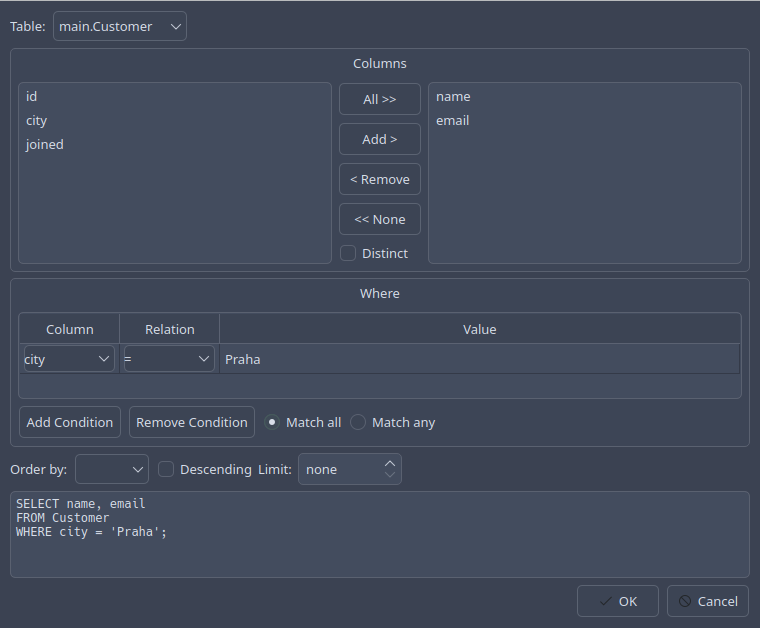
Create View… makes a view of the statement under the cursor.
Find and replace
Searching works as in Kate: a bar opens below the editor rather than a dialog over it.
- Ctrl+F
Opens the bar to find as you type. Each letter moves the selection to the next match, and every match is highlighted. The field turns green when there is a match and red when there is none. Enter and Shift+Enter go to the next and the previous one; the search starts over at the other end of the script when it runs out, saying so.
- Ctrl+R
Opens the bar with replace and the search options. Here searching waits for Enter. Replace replaces the selected match and selects the next; Replace All replaces every match at once, and a single Ctrl+Z takes all of it back. Find All highlights and counts the matches.
- F3 / Shift+F3
The next or previous match again, with the bar open or closed.
- Ctrl+H / Ctrl+Shift+H
Find the selected text, or the word at the cursor, forwards or backwards.
- Esc
Closes the bar and takes the highlighting away.
Selecting several lines and pressing Ctrl+R checks Selection only: the search and Replace All then keep to those lines.
The text to find is read as plain text, whole words, plain text with escape
sequences (\n, \t, \\), or a regular expression (Perl-compatible;
\1 to \9 in the replacement are its groups, \U, \L and \E change
the case of what follows). The last fifteen searches and replacements are
kept from one session to the next.
Files
Ctrl+O opens a script, Ctrl+S saves, Ctrl+Shift+S saves under another name. A file is written back with the line ends it had. A page with unsaved changes says so in its tab, and asks before it closes. The Files tab on the left opens scripts by double-click; Ctrl+Shift+B goes there, F6 back to the editor.