The database browser
The Databases tab on the left lists every open database: under each file
its schemas — main, the attached ones, temp once it holds something —
and under those the tables, views and SQLite’s own tables. A table unfolds
into its columns, indexes and triggers; a column says its type and whether
it is a key, not null, has a default or is generated. Names are shown as
they were written, upper and lower case as they are.
Ctrl+B moves the keyboard here from anywhere, so a table can be found and opened without the mouse: the arrow keys walk the tree, Enter opens what is selected. The box above the tree keeps only the objects whose names contain what is typed in it.
The browser follows the schema by itself. Whatever changes it — a statement in an editor, a dialog, a rolled back transaction — is shown as soon as it is done. Refresh (F5) reads it again anyway, for changes another program made.
A name dragged from the tree into an editor is dropped as text, quoted if it needs to be.
Opening
Double-clicking a table, view, index or trigger — or Enter on it — opens its page: a table’s or view’s at its rows, with its SQL, columns, indexes, foreign keys, triggers and diagram on tabs beside them. A database expands on a double-click; its page is behind Details on its context menu.
Creating and altering a table
Create Table… and Alter Table… open the same dialog.
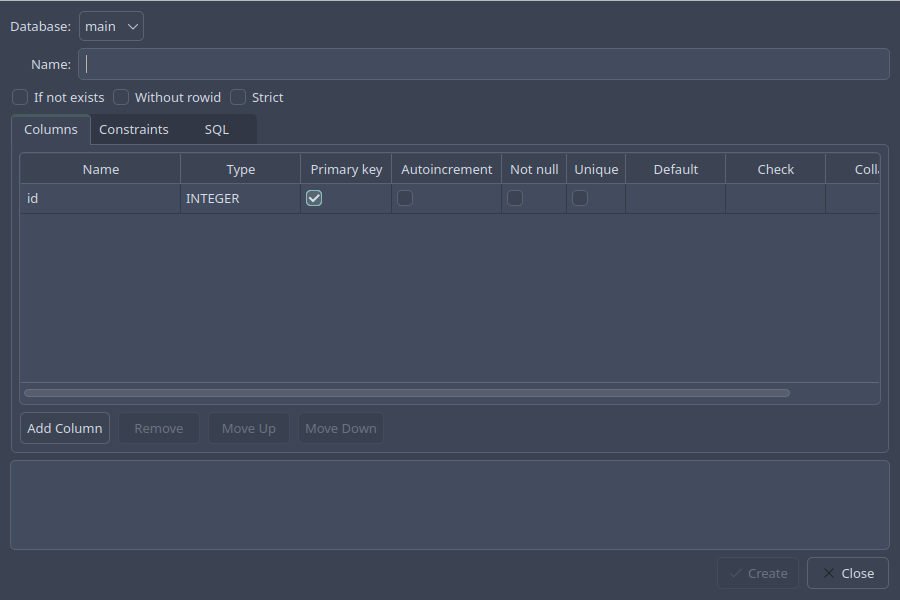
- Columns
One row per column: its name, type, and whether it is the primary key, autoincrement, not null or unique; its default,
CHECK, collation, and anything else as SQL (REFERENCES …,GENERATED ALWAYS AS …). The type box offers SQLite’s names, but any type name is allowed, as SQLite allows it.- Constraints
Constraints over more than one column: Add UNIQUE… and Add PRIMARY KEY… take the columns selected on the first tab, Add Other… a
CHECKorFOREIGN KEYwritten as SQL.- SQL
The statements the dialog will run, updated as you go. Edit the SQL by hand runs what is written there instead.
Without rowid and Strict make the table one of those kinds.
How a table is altered
SQLite can rename a table, rename, add and drop a column with
ALTER TABLE; for anything else — a column’s type, a constraint, a new
order of the columns — the table has to be built again. The dialog does
whichever the change needs, and the SQL tab shows which:
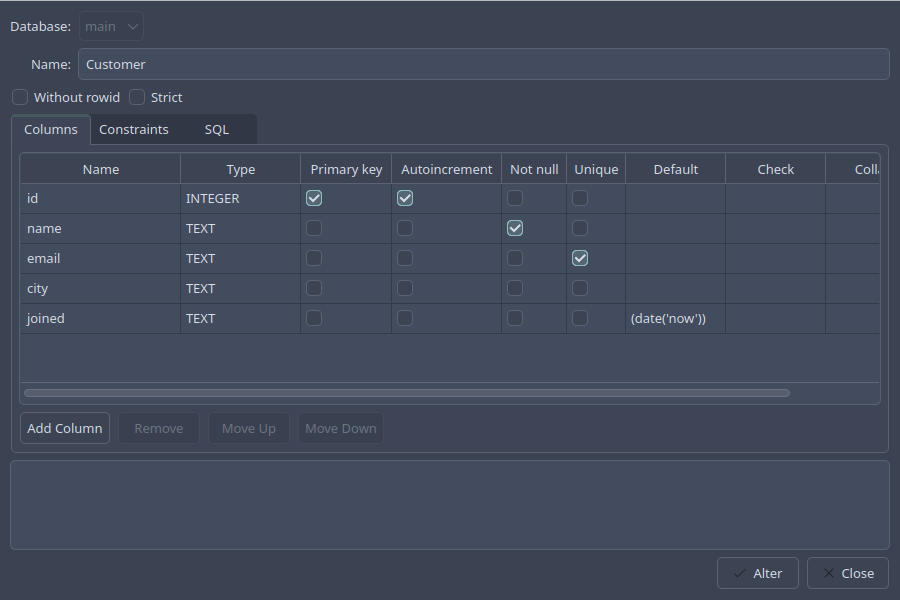
A rebuild follows the procedure SQLite’s documentation gives: a new table is created as the dialog describes it, the rows are copied over by column, the old table is dropped and the new one renamed in its place, and the indexes, triggers and views that were on it are made again. With foreign keys on, they are switched off for the rebuild and checked afterwards; any row the change breaks undoes all of it. That is also why such a change is refused inside an open transaction: switching foreign keys off cannot be done there.
Everything runs as one savepoint, so an error halfway leaves the table as it was. The log below the dialog says what was done.
A virtual table has no columns of its own to alter, and the dialog says so.
Indexes
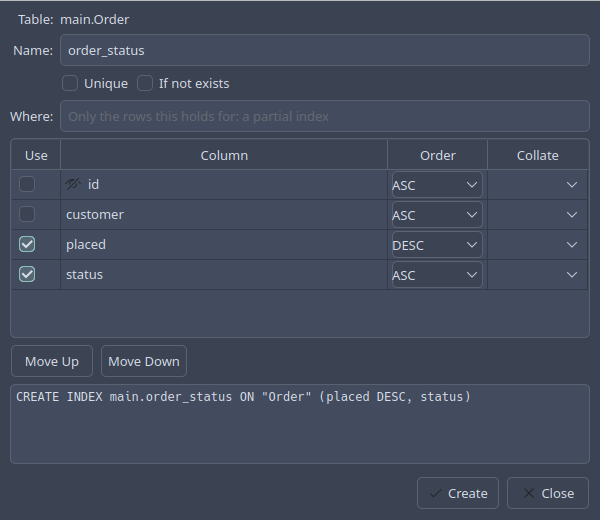
Create Index… takes the columns to index, ticked and put in order with
Move Up and Move Down, each ascending or descending and with a
collation if wanted. Unique makes it a unique index, Where a partial
one. An index on an expression is a CREATE INDEX statement in an editor.
Views and triggers
Create View… and Create Trigger… open an editor for the statement, a trigger starting from a template that works as it is. Alter View… and Alter Trigger… show the current definition: SQLite cannot alter either, so the old one is dropped and the new one created — in a savepoint, so a new definition that fails leaves the old one in place.
A view can also be made from an editor: Create View… on its toolbar takes the statement under the cursor.