Object pages and diagrams
Everything in the browser has a page: double-click a table, view, index or trigger, or choose Open on its context menu. A database — the file, or an attached one — has a page too, behind Details on its context menu; a double-click expands it instead. The same object opens in the same page, and F5 there reads it again.
A table or view
A table’s or view’s page opens at its Data — its rows, to filter, order and edit, described in table data. Beside them:
- SQL
The
CREATEstatement, with those of its indexes and triggers.- Columns
Name, declared type,
NOT NULL, the default, the place in the primary key, and whether the column is generated.- Indexes
Each index, whether it is unique, what made it —
CREATE INDEX, aUNIQUEconstraint or the primary key — whether it is partial, and its columns with their order and collation.- Foreign Keys
The columns, the table and columns they refer to, and what happens on update and on delete.
- Triggers
The table’s or view’s triggers.
- Diagram
The table among its neighbours; see diagrams.
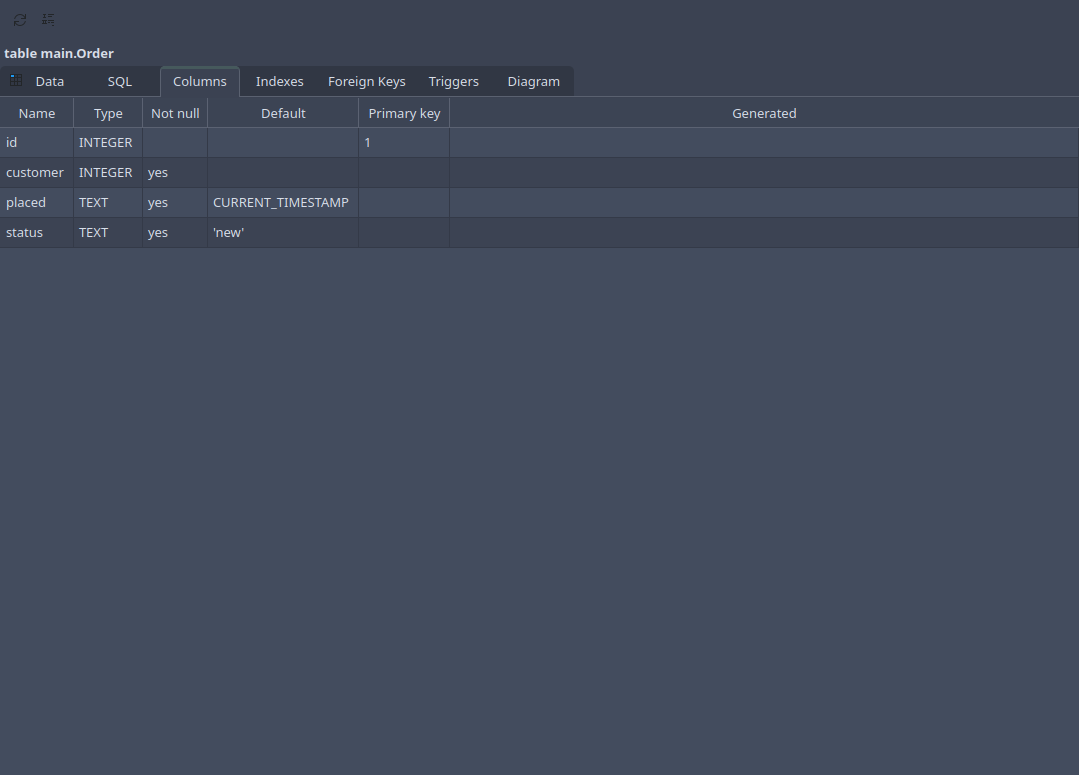
A table’s page: a line of facts about it, and its tabs.
Count Rows on the toolbar counts a table’s rows — a full scan, which is why it is not done unasked. An index’s or trigger’s page has its SQL, and an index its columns.
A database
- Properties
The file and its size, and the write-ahead log’s while there is one; whether it is read-only; the page size, the number of pages and of free ones, with the space a
VACUUMwould give back; the text encoding, the journal mode, auto-vacuum;user_version,application_idand the schema version; the SQLite in use; and how many tables, views, indexes and triggers it has.- Objects
Every table, view, index and trigger, with what it belongs to, how many columns it has and what is special about it:
WITHOUT ROWID,STRICT, foreign keys, SQLite’s own. Double-click one to open its page.- Schema
The
CREATEstatements of all of it, ready to be copied.- Diagram
All its tables; see below.
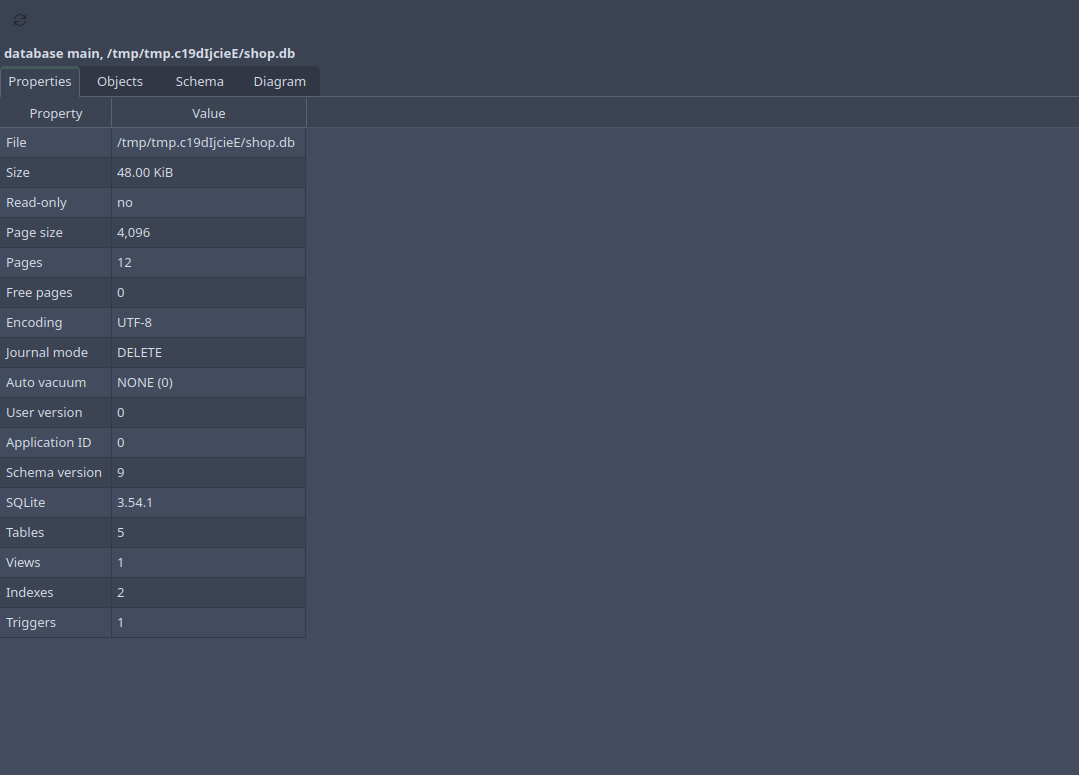
The page follows the schema: whatever changes it, in an editor or a dialog, shows here once it is done. The pragmas page sets what can be set.
Diagrams
The Diagram tab draws tables and the foreign keys between them. Diagram on the context menu of a table or a database opens its page at that tab.
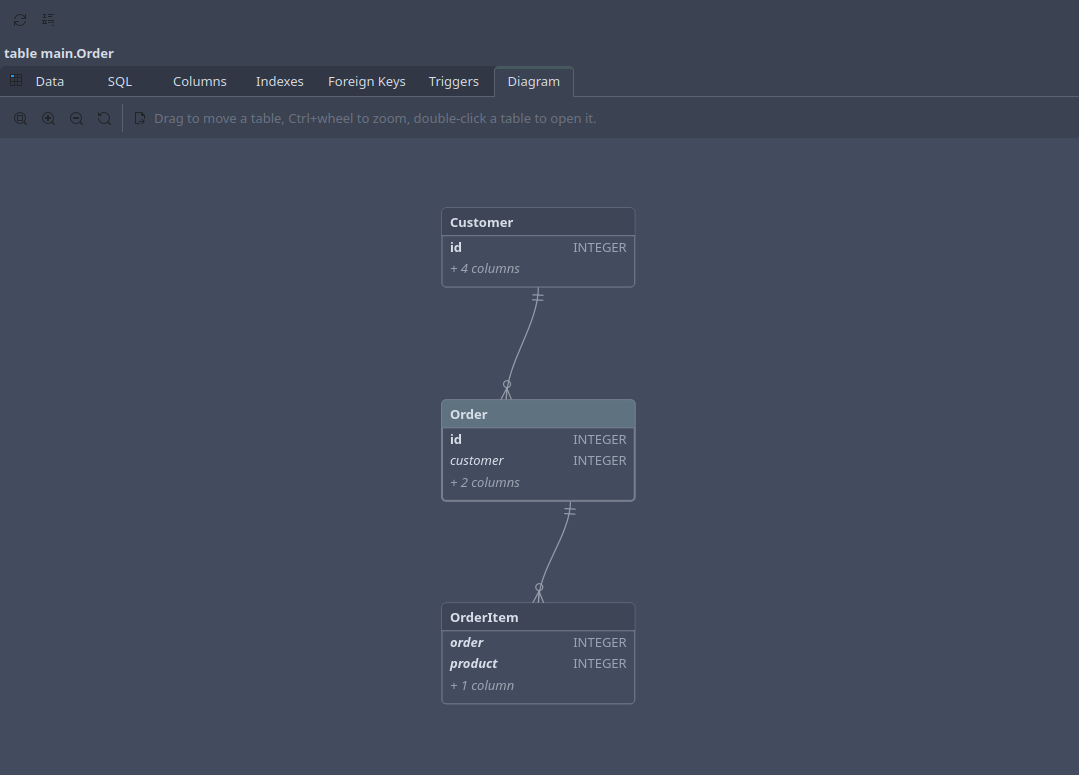
A table’s diagram has the table in the middle, what it refers to above it, and what refers to it below:
A database’s diagram has all its tables, but for SQLite’s own, in layers: a table referred to is above the ones referring to it. Views are not in it, having no keys.
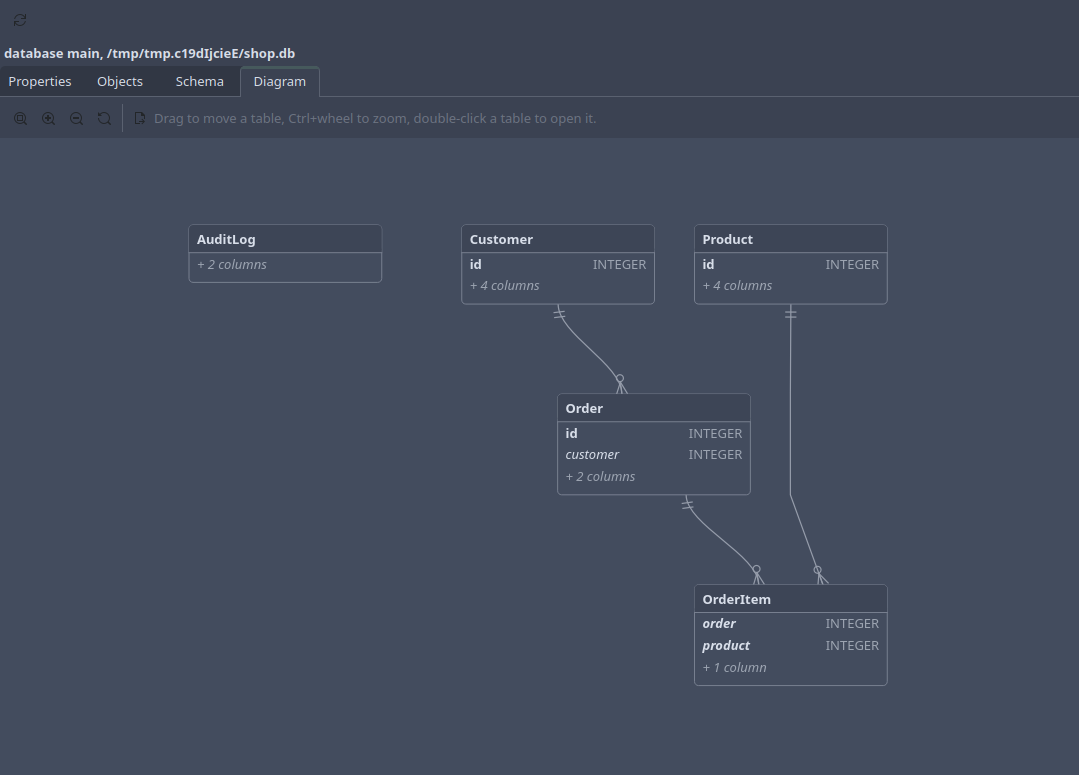
Each box lists the columns its keys are made of — the primary key in bold,
the foreign keys in italics — and how many other columns there are; its
tooltip lists them all. A line runs from a foreign key to the table it
refers to, with crow’s feet: one end is exactly one when the key’s
columns are all NOT NULL, zero or one when it may be NULL; the other
end is many.
Drag a table to move it, Ctrl and the wheel to zoom, and double-click a table to open its page. The toolbar fits the diagram to the window, zooms, and exports it:
Copy as Mermaid and Copy as Graphviz, for pasting into documentation: Mermaid’s
erDiagram, or Graphvizdotwith a table per box. These list every column, and those tools lay them out their own way.Save as SVG, PNG or PDF: the picture as it is drawn, tables where they were dragged to, black on white whatever the window’s colours.
Save as Graphviz or Mermaid: the same text as a file.
SQLite’s foreign keys never leave their own database, so neither does a diagram: an attached database has a diagram of its own. A key referring to a table that does not exist, which SQLite allows, is not drawn.